
Do you get an HTTP 403 Forbidden error when scraping a website?
The 403 web scraping error code is a common HTTP response for an unfulfilled request. It's often returned when an anti-bot-protected website recognizes your traffic as automated and denies access to the content.
An error 403 forbidden response might look like this in your terminal or log:
HTTPError: 403 Client Error: Forbidden for url: https://www.scrapingcourse.com/antibot-challenge
While most anti-bots block unwanted traffic with a 403 error, we've found that Cloudflare is the most common culprit. Fortunately, you can overcome the 403 Forbidden error with seven actionable techniques.
- Set a fake User Agent.
- Complete your headers.
- Control Request Frequency to avoid IP bans.
- Make requests through proxies.
- Use a headless browser.
- Use Stealth plugins.
- Scraping API to bypass error 403 at scale
Keep reading to see how to bypass 403 forbidden error in Python or any programming language.
Fix Error 403 Forbidden Based on Pattern of Appearance
Depending on the target site, anti-bot behavior, and your client's environment, the 403 Forbidden error can appear in various ways.
The Website Is Accessible via a Browser, But not via a Scraping Request
When a target website loads normally in your browser but returns a 403 Forbidden error with your scraping tool, it usually means the site has identified your scraper as a bot and blocked it. This often happens because your scraping request lacks key browser fingerprints, required request headers, or certain authentication tokens that are present during normal browser sessions.
To address this, consider using headless browsers or “stealth” tools that more closely mimic real user activity. These tools generate authentic browser fingerprints, send proper headers, and can handle dynamic tokens or cookies, making it much harder for anti-bot systems to detect automation.
The Website Is Neither Accessible via a Browser nor a Scraping Request
This 403 block pattern often points to an IP address issue. The target site could have implemented georestrictions to block IPs from certain regions, or issued you an IP ban due to previous suspicious activity. It usually occurs when your browser shares the same IP address as the one used for your scraping request.
Masking requests with rotating residential proxies usually solves this issue. If georestriction is the cause, select geo-targeted proxies that route your requests through an allowed country.
The Website Only Accepts Your Scraping Requests at Specific Times of the Day.
If your scraping requests are only successful at certain times of day, it typically points to time-based traffic restrictions. Many websites adjust their anti-bot security measures based on the hour or website load, increasing defenses during peak traffic. Automated scraping requests are more likely to be blocked with 403 errors during these active periods.
To reduce the chances of being blocked, schedule your scraping tasks during off-peak hours, when anti-bot protections are usually less strict and automated access is less likely to be flagged.
You Only Get the 403 Forbidden Error After Making Some Requests
If you receive several successful responses before encountering a 403 Forbidden error, you are being rate-limited. Many websites limit the number of requests each IP address can make within a set time frame, then temporarily block further requests with a 403 error if that limit is exceeded. Some sites intentionally disguise rate-limiting responses as generic 403 errors to obscure their defense mechanisms.
To avoid triggering rate limits, Matheus Canhizares, Senior Software Engineer, recommends "implementing request throttling, adding random, human-like delays between actions, and simulating browser behavior by waiting for resources like images and CSS to load." These strategies help your scraper appear less robotic and reduce the risk of rate-based blocks.
The 403 Forbidden Error Occurs Intermittently and Unpredictably
A 403 Forbidden error that occurs randomly during concurrent scraping often indicates your scraper is exposing automation signals in some requests. Each time bot-like information leaks, anti-bot systems re-fingerprint and may block subsequent requests.
Such issues typically arise from inconsistencies in request headers or browser fingerprints. Using outdated or misconfigured stealth browsers can also cause fingerprint leaks, leading to unexpected 403 errors.
Modern anti-bot systems analyze far more than just the User Agent string. They examine device type, OS, hardware concurrency, screen size, rendering engine, WebDriver status, and other environment characteristics.
As Senior Stealth Engineer Jonathan Nebot notes: “It’s technically complex and resource-intensive to determine which signals an anti-bot system is fingerprinting at any given moment, but I always recommend dynamically patching every potential bot indicator to minimize the risk of unexpected scraping failures.”
Now, let's go through more practical approaches to solving the HTTP 403 Forbidden error.
Although the code examples in this article will be in Python, the principles can be adapted to your preferred language, such as Node.js, Java, or Ruby.
1. Set a Fake User Agent
One way to bypass the HTTP 403 error in web scraping is to set a fake User Agent by modifying your scraper's original User Agent. The User Agent is a string sent by web clients with every request so the server can identify them. It details the client version, vendor, platform, and operating system.
Modifying the User Agent to a browser-like value tricks the web server into thinking your request is coming from a legitimate browser rather than a bot, reducing the likelihood of a 403 response.
Non-browser web clients have unique User Agents that servers use to detect and block them. For example, here's what a Python Requests' User Agent looks like:
python-requests/2.32.3
And here's a Chrome User Agent:
Mozilla/5.0 (Windows NT 10.0; Win64; x64) AppleWebKit/537.36 (KHTML, like Gecko) Chrome/145.0.0.0 Safari/537.36
The examples above show how easy it is for websites to differentiate between the two.
Yet, you can manipulate your User Agent (UA) string to appear like that of Chrome or any browser. In Python Requests, just pass the fake User Agent as part of the headers parameters in your request.
Creating a working UA string can get complex, so check out our list of the best web scraping User Agents you can use.
Let's see how to set a User Agent in Python by adding the new UA in the headers object used to make the request. We'll send a request to HTTPBin, a test endpoint that returns your current User Agent:
import requests

url = "https://httpbin.io/user-agent"

headers = {
    "User-Agent": "Mozilla/5.0 (Windows NT 10.0; Win64; x64) AppleWebKit/537.36 (KHTML, like Gecko) Chrome/145.0.0.0 Safari/537.36",
}

# set headers
response = requests.get(url, headers=headers)


print(response.text)
You'll get the following output:
{
  "user-agent": "Mozilla/5.0 (Windows NT 10.0; Win64; x64) AppleWebKit/537.36 (KHTML, like Gecko) Chrome/145.0.0.0 Safari/537.36"
}
For the best results, you must randomize User Agents. Read our tutorial on setting User Agents in Python to learn how to do that.
However, just setting a User Agent isn't enough. Websites use multiple layers of protection, so combining them with other techniques can help in bypassing the 403 Forbidden error.
2. Complete Your Headers
When making requests with web clients like Python's Requests or headless browsers like Selenium, the default headers don't include all the standard data that websites expect in a user's request. That'll make your request stand out as suspicious, leading to a 403 status code or a 403 web scraping error triggered by WAFs like Imperva.
For example, these are Python Requests' default headers:
{
  "headers": {
    "Accept": [
      "*/*"
    ],
    "Accept-Encoding": [
      "gzip, deflate"
    ],
    "Connection": [
      "keep-alive"
    ],
    "Host": [
      "httpbin.io"
    ],
    "User-Agent": [
      "python-requests/2.32.3"
    ]
  }
}
The above headers are incomplete and don't resemble what a typical browser would send in a normal request. If you just send out requests without modifying your HTTP client's request headers, you've been using default headers like the above. And it's getting you blocked.
And below are the request headers from a regular web browser.
headers = {
    'authority': 'www.google.com',
    'accept': 'text/html,application/xhtml+xml,application/xml;q=0.9,image/avif,image/webp,image/apng,*/*;q=0.8,application/signed-exchange;v=b3;q=0.7',
    'accept-language': 'en-US,en;q=0.9',
    'cache-control': 'max-age=0',
    'cookie': 'SID=ZAjX93QUU1NMI2Ztt_dmL9YRSRW84IvHQwRrSe1lYhIZncwY4QYs0J60X1WvNumDBjmqCA.; __Secure-
    #..,
    'sec-ch-ua': '"Not/A)Brand";v="99", "Google Chrome";v="145", "Chromium";v="145"',
    'sec-ch-ua-arch': '"x86"',
    'sec-ch-ua-bitness': '"64"',
    'sec-ch-ua-full-version': '"145.0.5790.110"',
    'sec-ch-ua-full-version-list': '"Not:A-Brand";v="99.0.0.0", "Google Chrome";v="145.0.7632.76", "Chromium";v="145.0.7632.76"',
    'sec-ch-ua-mobile': '?0',
    'sec-ch-ua-model': '""',
    'sec-ch-ua-platform': 'Windows',
    'sec-ch-ua-platform-version': '10.0.0',
    'sec-ch-ua-wow64': '?0',
    'sec-fetch-dest': 'document',
    'sec-fetch-mode': 'navigate',
    'sec-fetch-site': 'same-origin',
    'sec-fetch-user': '?1',
    'upgrade-insecure-requests': '1',
    'user-agent': 'Mozilla/5.0 (Windows NT 10.0; Win64; x64) AppleWebKit/537.36 (KHTML, like Gecko) Chrome/145.0.0.0 Safari/537.36',
    'x-client-data': '#..',
}
The difference between the two header sets is clear.
You can change your headers to look like a regular browser using Python Requests. To do that, define browser headers in the headers object just as you did with User Agents.
import requests

url = "https://httpbin.io/headers"

headers = {
    "authority": "www.google.com",
    "accept": "text/html,application/xhtml+xml,application/xml;q=0.9,image/avif,image/webp,image/apng,*/*;q=0.8,application/signed-exchange;v=b3;q=0.7",
    "accept-language": "en-US,en;q=0.9",
    "cache-control": "max-age=0",
    "user-agent": "Mozilla/5.0 (Windows NT 10.0; Win64; x64) AppleWebKit/537.36 (KHTML, like Gecko) Chrome/145.0.0.0 Safari/537.36",
    # add more headers as needed
}

# set headers
response = requests.get(url, headers=headers)

# print response
print(response.text)
You'll get the following output on running the code:
{
  "headers": {
    "Accept": [
      "text/html,application/xhtml+xml,application/xml;q=0.9,image/avif,image/webp,image/apng,*/*;q=0.8,application/signed-exchange;v=b3;q=0.7"
    ],
    "Accept-Encoding": [
      "gzip, deflate"
    ],
    "Accept-Language": [
      "en-US,en;q=0.9"
    ],
    "Authority": [
      "www.google.com"
    ],
    "Cache-Control": [
      "max-age=0"
    ],
    "Connection": [
      "keep-alive"
    ],
    "Host": [
      "httpbin.io"
    ],
    "User-Agent": [
      "Mozilla/5.0 (Windows NT 10.0; Win64; x64) AppleWebKit/537.36 (KHTML, like Gecko) Chrome/145.0.0.0 Safari/537.36"
    ]
  }
}
You can use your browser headers by inspecting any web page, preferably your target website, using a regular browser. Navigate to the "Network" tab, select any request, and copy the headers. However, for cleaner code and header structure, check out our guide on HTTP headers for web scraping.
3. Control Request Frequency to Avoid IP Bans
Sending too many requests from the same IP address often leads to 403 status code errors and even IP bans. Most websites employ request rate limits to control traffic and resource usage. Therefore, exceeding a predefined limit will get you blocked.
In this case, you can prevent IP bans by implementing delays between successive requests or throttle requests by limiting the number of requests you make within a given time frame.
To delay requests in Python, set the delay between consecutive requests, specify the total number of retry attempts, iterate through each request, and use the time.sleep() function to pause between requests.
# pip3 install requests
import requests
import time


# replace this with the target website URL
url = 'https://www.example.com'

headers = {
    # add your custom headers here
}

# define the time delay between requests (in seconds)
delay_seconds = 2

# number of requests you want to make
num_requests = 10

for i in range(num_requests):
    response = requests.get(url, headers=headers)

    # print the response
    if response.status_code == 200:
        print(f"Request {i + 1} successful!")
        print(response.text)      else:
        print(f'Request {i + 1} failed with status code: {response.status_code}')

    # introduce a delay between requests
    time.sleep(delay_seconds)
To make retries more intuitive, use techniques like exponential backoff to progressively increase the delay between retries when a request fails. This provides a cool-off period between attempts, reducing the likelihood of repeated failures.
Here's a modified version of the above code with exponential backoff:
# pip3 install requests
import requests
import time

# replace this with the target website URL
url = "https://www.example.com"

headers = {
    # add your custom headers here
}

# base delay in seconds for exponential backoff
base_delay = 2

# number of requests you want to make
num_requests = 10

for i in range(num_requests):
    # set an attempt counter
    attempt = 0
    # set the number of max retries when a request fails
    max_retries = 4
    while attempt < max_retries:
        response = requests.get(url, headers=headers)

        if response.status_code == 200:
            print(response.text)
            # exit retry loop on success
            break
        else:
            print(f"Request {i + 1} failed with status code: {response.status_code}")
            # exponential backoff
            delay = base_delay * (2**attempt)
            print(f"Retrying in {delay} seconds...")
            time.sleep(delay)
            attempt += 1
    # short pause between new requests (successful or failed)
    time.sleep(base_delay)
However, this can only help with a few requests. While understanding the concepts of rate limiting and IP bans is critical for avoiding the 403 web scraping error response, you also need to implement proxies.
4. Make Requests through Proxies
A better technique to avoid IP bans is to route requests through proxies. This is especially useful in preventing a 403 client error, forbidden for URL in Python, which commonly occurs when making multiple requests from the same IP.
The most common proxy types for web scraping are datacenter and residential. Datacenter proxies use IP addresses provided by data centers, which are easily detected by websites. Residential proxies, on the other hand, are real IP addresses of home devices and are generally more reliable and difficult for websites to detect.
Check out our guide on the best web scraping proxies to learn more.
To use proxies in Python Requests, add your proxy details to the requests.get() function using the proxy parameter. For testing purposes, you can grab some free proxies from Free Proxy List.
But note that free proxies work for testing only. You need premium proxies in a real environment. Premium residential proxies are high-quality and often require authentication credentials, such as passwords and usernames.
The example code below demonstrates how to implement proxy with authentication using Python's Requests.
#pip3 install requests
import requests

# replace this with the target website URL
url = "https://httpbin.io/ip"

headers = {
    # add your custom headers here
}

# define the proxy you want to use
proxy = {
    "http": "http://<YOUR_USERNAME>:<YOUR_PASSWORD>@<PROXY_IP_ADDRESS>:<PROXY_PORT>",
    "https": "http://<YOUR_USERNAME>:<YOUR_PASSWORD>@<PROXY_IP_ADDRESS>:<PROXY_PORT>",
}

response = requests.get(url, headers=headers, proxies=proxy)

# print the response
print(response.text)
It's important to note that free proxies are generally unreliable for web scraping. Moreover, free proxies often have slow connection speeds, frequent downtime and are blocked by most websites. For best results, you should use residential proxies with Python Requests.
An excellent option is to use a residential proxy service, such as those offered by ZenRows. ZenRows' residential proxies offer several advantages for web scraping, including high-quality IPs, auto-rotation, geolocation access, fast response times, and more.
However, like with User Agents, proxies alone may not be enough, so head to the next tip below.
5. Mimic Human Behavior with a Headless Browser
Rendering JavaScript is critical for web scraping of modern websites, especially for single-page applications (SPAs) that rely heavily on client-side rendering to display content. Moreover, anti-bot measures often throw JavaScript challenges to confirm whether the requester is using a real human browser or a bot.
Attempting to scrape web pages that rely on JavaScript with HTTP request libraries like Python's Requests will result in incomplete data or a 403 web scraping error.
Fortunately, headless browsers like Selenium allow you to render JavaScript and ultimately solve said challenges. Find out more in our guide on web scraping using Selenium with Python.
That said, while you can simulate human interactions with headless browsers, they don't protect you against outright anti-bot challenges. They also have bot-like fingerprints that make them appear to anti-bots as automated tools. So, they can increase the chances of hitting the 403 forbidden error.
Fortunately, you can further fortify these headless browsers with stealth plugins.
6. Use Stealth Plugins to Bypass 403 Forbidden Error
Stealth plugins enhance the anti-bot evasion capabilities of popular headless browser automation frameworks. They typically work as add-ons or wrappers that modify the browser’s behavior to reduce detectable automation signals.
Most popular frameworks, including Selenium and Playwright, have corresponding stealth plugins, which are easy to integrate into existing scraping code.
Here are some good examples of open-source stealth plugins and tools we've tested:
- SeleniumBase with Undetected ChromeDriver: An improved version of the standard Selenium library that shields Selenium from bot detection mechanisms.
- Cloudscraper: This tool works like the Python Requests library but uses JavaScript engines to solve Cloudflare's JavaScript challenges.
- Camoufox: A Playwright-compatible anti-bot evasion tool with anti-fingerprinting patches built on top of Firefox.
- FlareSolverr: A reverse proxy built specifically for bypassing Cloudflare's anti-bot measures.
Most of these stealth browsers and tools are built specifically to bypass Cloudflare, since it's the main cause of the 403 Forbidden error. However, some, like SeleniumBase and Camoufox, can help bypass other anti-bot measures.
While these plugins can be useful, it's important to understand their limitations. The primary challenge with open-source stealth plugins is that they often struggle to keep pace with frequent security updates and evolving anti-bot measures.
Anti-bots like Cloudflare, DataDome, Akamai, and PerimeterX continuously refine their detection methods, which makes it increasingly difficult for these plugins to remain effective over time. As a result, solutions that work today may become obsolete tomorrow, thus demanding constant updates and maintenance.
7. Scraping API to Bypass Error 403 at Scale (Best Solution)
Web scraping APIs are the most effective solution for bypassing the 403 Forbidden error in web scraping. These APIs handle issues such as 403 client errors (forbidden) for URL, ensuring smooth data extraction.
Modern anti-bot systems employ increasingly sophisticated protection measures, including IP detection, browser fingerprinting, behavioral analysis, and more. These defenses are designed to identify and block automated traffic, making it extremely challenging to avoid 403 Forbidden errors with open-source solutions. Web scraping APIs automatically bypass these protection measures, handling the complexities of mimicking human-like behavior at scale.
Solutions like the ZenRows Universal Scraper API provide all the features necessary to imitate natural user behavior, including JavaScript rendering, dynamic IP rotation, browser fingerprinting, advanced anti-bot bypass, and more. This allows you to avoid the 403 Forbidden error and scrape without getting blocked.
With its Adaptive Stealth Mode, ZenRows gives you the optimal configuration for success at the lowest possible cost. This provides you with an auto-managed, auto-scaled infrastructure. This lets you focus on core data tasks rather than wasting time and resources on manually resolving 403 Forbidden errors.
Let's see how ZenRows uses a Cloudflare-protected page as the target URL.
Sign up for free and open the Request Builder page. Enter the target URL (in this case, https://www.scrapingcourse.com/antibot-challenge), then activate Adaptive Stealth Mode.
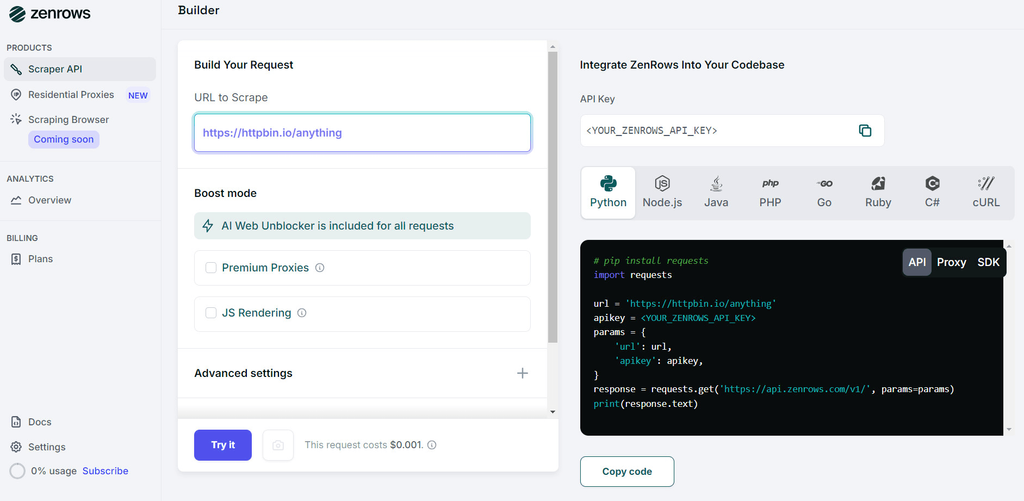
Select your preferred programming language (in this case, Python) and click on the API tab. That'll generate your request code.
Copy-paste the generated code and install the Python Requests library using the following command:
pip3 install requests
Your code should look like this:
import requests

url = "https://www.scrapingcourse.com/antibot-challenge"
apikey = "<YOUR_ZENROWS_API_KEY>"
params = {
    "url": url,
    "apikey": apikey,
    "js_render": "true",
    "premium_proxy": "true",
}
response = requests.get("https://api.zenrows.com/v1/", params=params)
print(response.text)
Run it, and you'll get the following result.
<html lang="en">
<head>
    <!-- ... -->
    <title>Antibot Challenge - ScrapingCourse.com</title>
    <!-- ... -->
</head>
<body>
    <!-- ... -->
    <h2>
        You bypassed the Antibot challenge! :D
    </h2>
    <!-- other content omitted for brevity -->
</body>
</html>
Awesome, right? ZenRows makes it easy to bypass the 403 Forbidden web scraping error.
Conclusion
While free solutions exist, they require complex setups and frequent updates and may still fail.
For a more reliable approach, consider using a web scraping API like ZenRows. It automatically handles anti-bot measures, proxy rotation, and other technical hurdles, allowing you to focus on data extraction rather than access issues.
This approach not only saves time and resources but also provides a much higher success rate in your web scraping projects, especially when dealing with sophisticated websites that employ advanced protection mechanisms.
Try ZenRows for free now or speak with sales!
Frequent Questions
What Is 403 Forbidden while Scraping?
403 Forbidden while scraping is an error response code that means the web server detects your scraping activities and denies you access. That happens because anti-bot systems flag your requests as automated and block them.
What Is Error 403 in Python Scraping?
Error 403 in Python Scraping refers to the HTTP status code Forbidden error that arises when a web server denies your request. Encountering this error when scraping using Python is common due to unique Python libraries' signatures and fingerprints, which are easily flagged by anti-bot measures. For example, its default User Agent and incomplete headers often identify it to the web server as bots.
How Do I Catch a 403 Error?
To catch an HTTP error 403 when scraping with Python, use the try and except blocks. When making a request, first include the try and except framework. Then, include a code block within a try block. In the case of a 403 error, the corresponding except block will catch the error, allowing you to implement the bypass techniques.
How Do I Bypass the 403 Error in Web Scraping?
To bypass the 403 error in web scraping, you must emulate natural user behavior because the error is mainly due to anti-bot measures. You can use a web scraping API like ZenRows to abstract the process of mimicking an actual browser while you focus on extracting the necessary data.
Can You Bypass a 403 Error?
Yes, you can bypass a 403 error by implementing techniques and/or tools that make you appear like a regular user. Strategies like headless browsers, rotating proxies, and User Agents, or using a web scraping API like ZenRows, can help you solve a 403 error.
How Do I Get Past 403 Forbidden in Python?
You can get past 403 Forbidden in Python by employing methods to mimic an actual browser request. Techniques such as using headless browsers, rotating premium residential proxies, and completing HTTP headers can help you achieve that.
Why Am I Getting a 403 Error When Web Scraping?
A 403 error during web scraping typically occurs for two main reasons. First, the website may require specific permissions to access certain content. Your scraper doesn't have these permissions. Second, the website has likely identified your activity as automated scraping. In response, it's blocking your access. This is a common protective measure websites use to control access to their data and prevent excessive automated requests.